---
title: Graph view
description: The Inventory drawn as a picture of how AI assets connect to each other, and where the blast radius is.
---
_[console.superalign.ai/graph](https://console.superalign.ai/graph)_
Graph view is the second view of [Inventory](/surface/overview/inventory). Open Inventory and click **Graph view** at the top right, or press `G` then `A`.
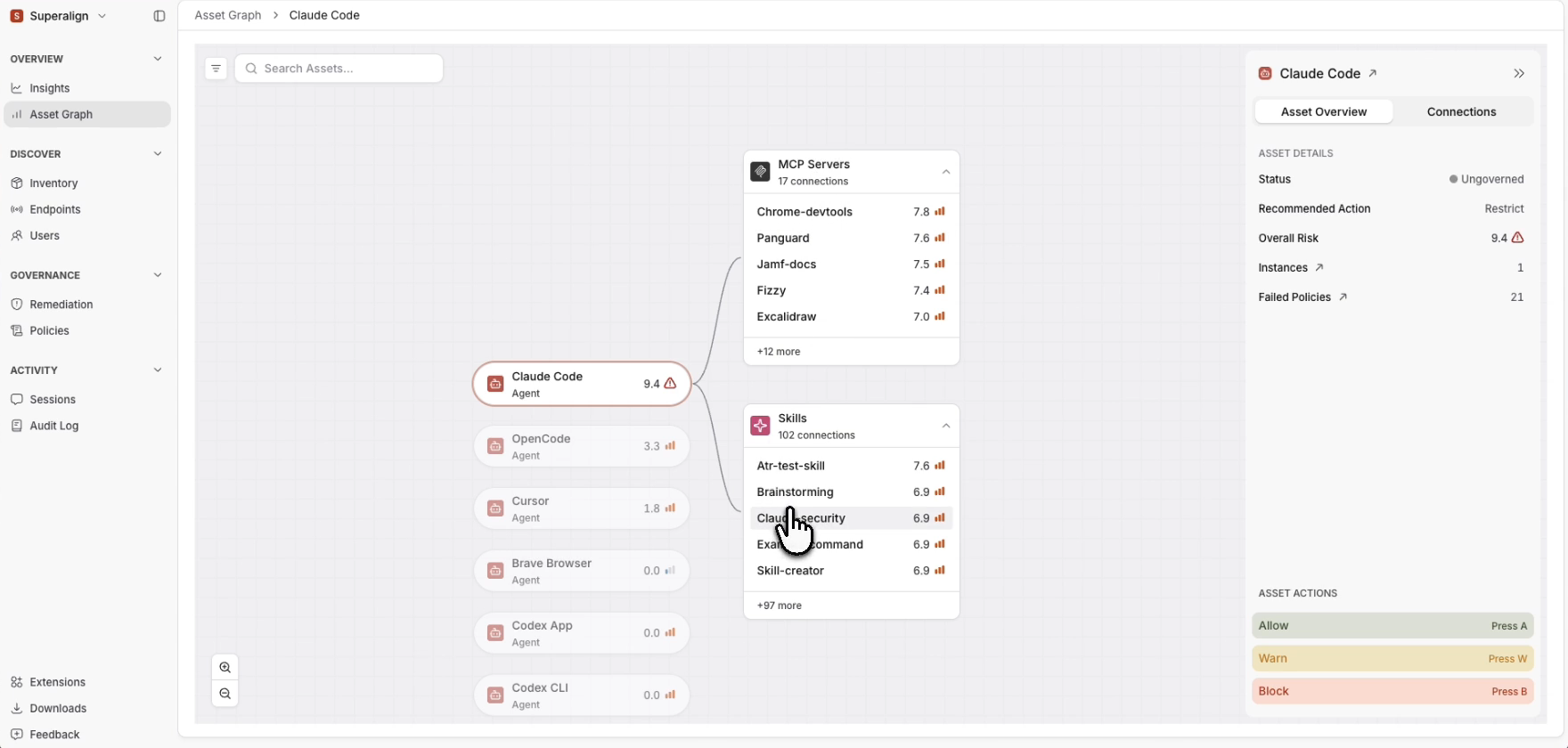
It shows connections: which agent uses which MCP servers and skills, which models it calls, and which extensions live inside which editor.
```mermaid
flowchart LR
A[Claude Code
Agent] --> M1[GitHub
MCP Server]
A --> M2[Filesystem
MCP Server]
A --> S1[PDF skill
Skill]
C[Cursor
Agent] --> M2
```
## Reading it
Assets are shown as cards grouped by type. Use **Add Filter** to show only some types or risk levels, and the search box to find an asset by name.
## Focus on one asset
Click a card. The asset moves to the middle, similar assets appear beside it with the riskiest first, and everything it connects to is drawn around it. Agents that use it appear on the left. The same asset panel as in [List view](/surface/overview/inventory#the-asset-panel) opens alongside.
Click **List view** to go back to the table. It opens with no filters and no asset selected.
## What to look for
- **A Critical or High asset with many connections.** If it is compromised, everything connected to it is exposed.
- **An MCP server used by several agents.** One point through which many agents reach other systems.
- **Groups of connected High-risk assets.** Deal with these areas first.
- **Assets with no connections.** They stand alone and are usually easy to handle one by one.