

Inventory
Every AI asset found on any endpoint, as a list or as a graph of how the assets connect.
console.superalign.ai/inventory
Inventory has two views. Switch between them with List view and Graph view at the top right of the page.
- List view (the default) is a table of every asset, described on this page.
- Graph view draws how the assets connect to each other. See Graph view.
If an asset’s panel is open when you switch to Graph view, the graph opens centered on that asset.
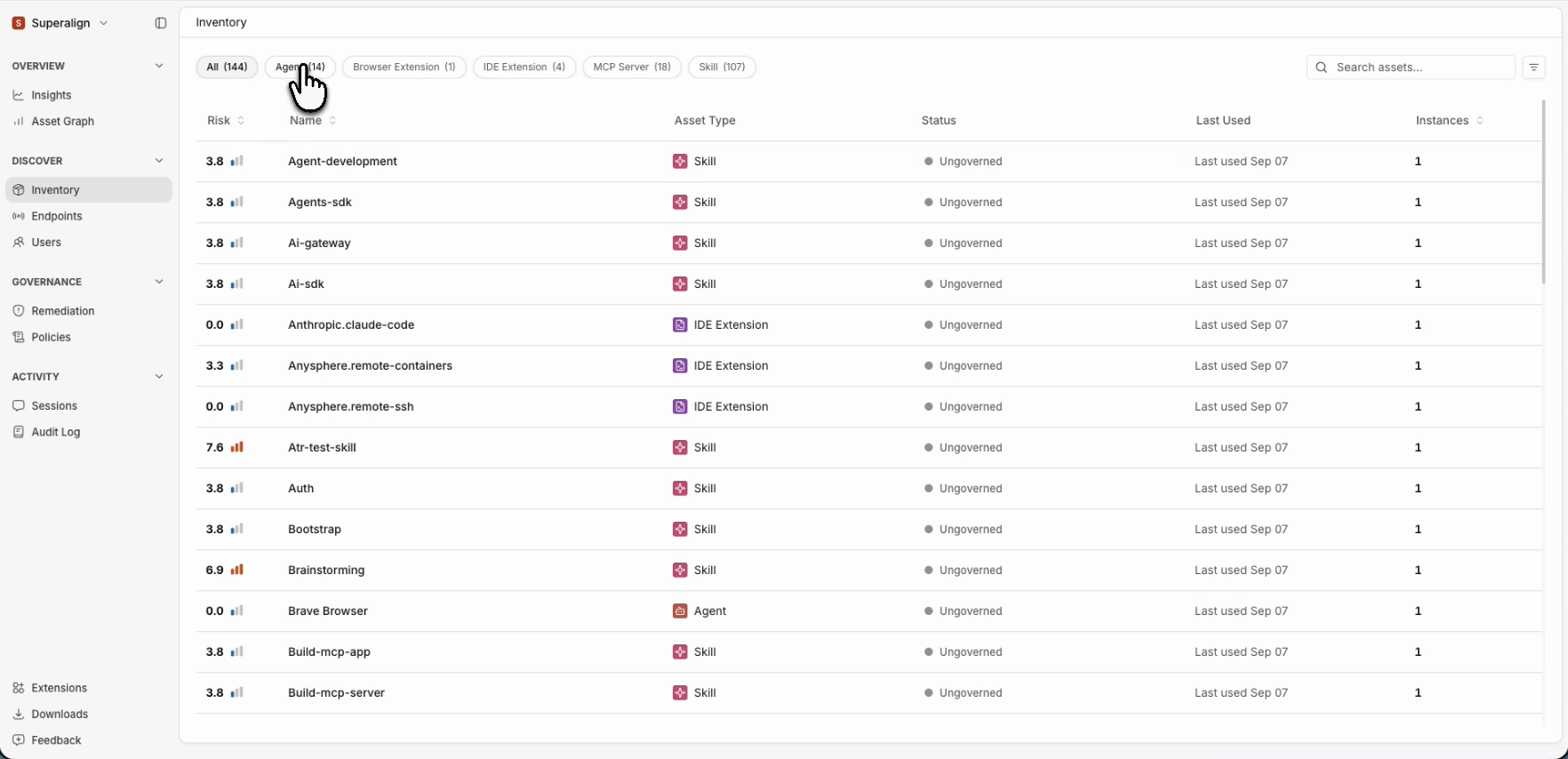
List view
Each row is one AI asset. It appears once, however many endpoints have it.
| Column | Meaning |
|---|---|
| Risk | Score from 0 to 10 and its level. See How risk is calculated |
| Asset Name | Click to open the asset |
| Asset Type | Agent, MCP Server, Skill, Browser Extension, IDE Extension, Model, Memory, or Tool |
| Status | Ungoverned (no action yet) or Governed |
| Last Used | When the asset was last seen in use |
| Instances | How many endpoints have it |
The buttons above the table switch between All and one asset type. Filters cover Status, Risk Level, and a range of Instances.
A good way to start
- Filter by Critical and High. Deal with those first.
- Filter by Ungoverned to see how much has never been reviewed.
- Sort by Instances to find the assets that are everywhere.
- Look at every MCP Server whatever its risk. They give agents access to other systems.
The asset panel
Click a name and a panel opens on the right, with three tabs.
- Overview: status, Current Enforcement (the action in force) or Recommended Action (the suggested one), risk score, sessions from this asset, and number of endpoints. The numbers with an arrow are links.
- Policies: the Violations list, every policy the asset fails, with severity.
- Connections: the other assets this one is linked to, such as the MCP servers and skills a coding agent uses.
Admins also see Take Action at the bottom. See Asset Access.
The asset’s full page
The arrow beside the asset’s name at the top of the panel, Open Risk Breakdown, opens the asset’s full page. It has two tabs.
- The first tab, named after the asset, shows the Instance Risk Breakdown (how many endpoints have it at each risk level), its connections, and the failed policies table with date and severity. This is the “why” behind the score.
- Instances lists every endpoint that has the asset, with the risk on that endpoint and when it was last seen. Click an endpoint to see that instance’s install path and, for Admins, to take action on that endpoint only.